
Time Wayback Machine: Snapshots, Timestamps, and Capture Gaps
By the Restorix editorial team · June 3, 2026 · 7 min read

Restore your website from the Wayback Machine
Get a free estimate in seconds — you only pay when you confirm. Failed restores refund automatically.
Everybody calls it a time machine, and the name sticks because the experience really does feel like time travel: type a URL, pick a year, watch a dead website blink back to life. But the metaphor breaks down the moment you need something specific. A real time machine would land you at the exact second you asked for. This one lands you wherever the crawler happened to be, on whatever day it happened to visit.
Once you understand how the time Wayback Machine actually records the past, captures, calendars, timestamps, and the gaps between them, you stop guessing and start reading it like an instrument. This guide is the owner's manual.
What the Time Wayback Machine Actually Records
The Wayback Machine does not record continuously. It takes discrete captures: a crawler requests a URL, stores the response, HTML, images, stylesheets, scripts, and stamps it with the date and time of the visit. For that URL, history exists only at those moments. Everything in between is inference.
The scale is staggering, hundreds of billions of captures going back to 1996, but it is lumpy. A major news homepage might be captured dozens of times a day. A small business site might get four visits a year. A page behind a login gets zero, ever. Treat every URL as its own timeline with its own density.
The strip at the top of any archived page is a bar chart of captures per year. Tall bars mean the crawler came often. Flat or missing years mean it did not, and the reasons are usually discoverable once you know where to look.
Reading the Timeline and Calendar View
Restore your website from the Wayback Machine
Get a free estimate in seconds — you only pay when you confirm. Failed restores refund automatically.
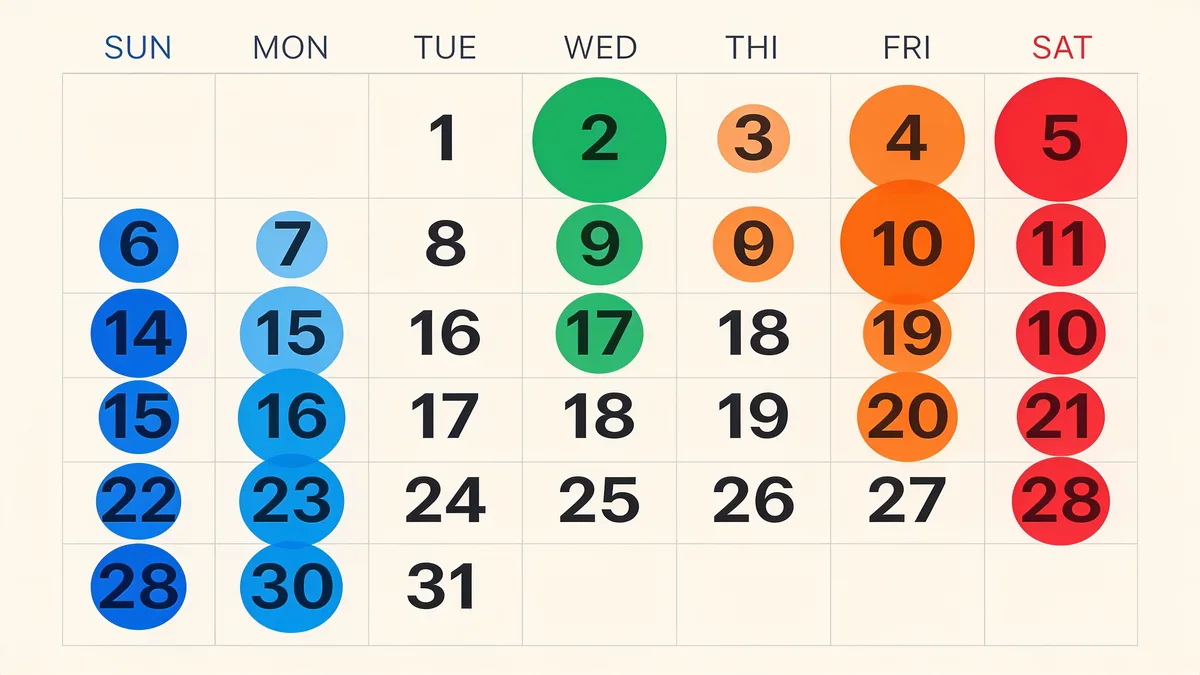
Open any URL and you get two instruments. The year strip shows capture counts per year. Click a year and you get a calendar: twelve months of days, some circled, some not. The circles carry information most people scroll right past.
| Calendar marking | What it means |
|---|---|
| Blue circle | Capture returned a normal 2xx page, the good stuff |
| Green circle | Capture was a 3xx redirect; the crawler was sent to another URL |
| Orange circle | Capture hit a 4xx client error, often a deleted page |
| Red circle | Capture hit a 5xx server error, usually a broken or dying site |
| Bigger circle | Multiple captures that day, not just one |
| No circle | No capture at all, the crawler did not visit, or was not allowed |
The colors earn their keep fast. A year of blue followed by a month of red followed by green tells a story: the site broke, then started redirecting, often to a parked-domain page or a half-finished redesign. If you are hunting for the last healthy version of a site, you want the final stretch of blue before the colors turn.
I once traced a client's WooCommerce store this way: solid blue through 2019, a scatter of red in March 2020, the hack, then green redirects to a domain-for-sale lander. The restore target picked itself: late February 2020, the last dense blue month before everything went sideways.
Decoding the Timestamp on a Time Wayback Machine Snapshot
Every capture URL carries a 14-digit timestamp: /web/20150309142312/https://example.com/. Read it as year, month, day, hour, minute, second, here, 2:23 PM on March 9, 2015. You can edit those digits by hand, and power users do it constantly: change the date, and the archive serves the capture nearest to the moment you asked for.
- The timestamp is crawl time, not publish time. A 2015 capture of an article written in 2011 still says 2015.
- Everything is UTC. A capture stamped 23:58 happened two minutes before midnight GMT, whatever your local clock says.
- Files on the same page can carry different timestamps. The archive stitches each asset in from its nearest capture, so a page's HTML and images may be days apart.
- Nearest-match cuts both ways. Ask for a date with no capture and you get the closest one, which might be months away on a sparse timeline. Always check the actual timestamp of what loaded.
Why Capture Gaps Happen (and What They Tell You)
Gaps are the norm, not the exception, and they have causes you can usually name.
- Popularity. Crawl frequency roughly follows how linked and visited a site is. Obscure sites get crawled rarely.
- Robots.txt. For years, a disallow rule kept the crawler out entirely, and old exclusion requests can still hide whole domains.
- Downtime. If the site was down when the crawler came by, you get a red circle or nothing at all.
- JavaScript rendering. Pages that build content client-side often captured as empty shells.
- Logins and paywalls. Anything behind authentication is invisible to the crawler.
- Ownership gaps. An expired domain parked for a year produces a calendar of redirect and error captures.
Read diagnostically, gaps are data. A two-year hole in an otherwise dense timeline usually means a robots change, a lapsed domain, or a long outage, all worth knowing before you buy that domain or trust that history.
A Chronological Workflow for Investigating a Site
- Start at the end. Find the last healthy blue captures, then walk backward year by year until the content you are after appears.
- Sample at intervals. On a dense timeline, check one capture per quarter first; zoom into months only where something changed.
- Watch for discontinuities. A sudden redesign, a URL structure change, or a wave of redirect captures marks a boundary, older content may live under different URLs.
- Verify beyond the homepage. Open five or ten key interior pages in your chosen era. A homepage capture proves nothing about the rest of the site.
- Record exact capture URLs and timestamps as you go. Sometime in 2012 is not a citation, and it is not a restore target either.
Take a 2009 phpBB forum a client wanted back. The timeline showed dense captures from 2010 to 2013, a redesign in 2014 that gutted the thread URLs, and a parked domain from 2016 on. The sweet spot was 2012–2013: complete threads, working attachments, pre-spam. Two hours of chronological reading saved a week of restoring the wrong era.

When the Time Wayback Machine Isn't Enough
Two hard limits catch people out. First, the archive shows pages one at a time, in a browser, there is no download button for a whole site, and rebuilding anything bigger than a dozen pages by hand is misery. Second, some things were never captured at all: database-driven features, search functions, carts, anything the crawler could not see.
The fix for the first limit is a dedicated restore tool. our restore tool pulls every archived file for a site across a date range you choose, which is exactly what your timeline reading gives you, and rebuilds it as a working site. The free estimate reports the exact archived file count, total size, and a locked price before you spend anything; you pay per restored file, and the first file is free.
If you are torn between two eras, run the free estimate on both date ranges and compare file counts, a cheap way to see which period the archive covered best. Once you start, the restore dashboard shows live progress file by file.
Restore your website from the Wayback Machine
Get a free estimate in seconds — you only pay when you confirm. Failed restores refund automatically.
FAQ
What do the colored circles on the Wayback Machine calendar mean?
They encode the server's response at capture time: blue for a normal 2xx page, green for a 3xx redirect, orange for a 4xx client error, red for a 5xx server error. A bigger circle means multiple captures that day. Long runs of blue are what you want when picking a restore target.
How often does the Wayback Machine capture a site?
There is no fixed schedule. Crawl frequency roughly follows a site's popularity and link profile: a major outlet may be captured many times a day, a small business site a handful of times a year. You can force a capture of any public page at any moment with the Save Page Now tool.
What exactly does the 14-digit timestamp in a capture URL mean?
It is the crawl time of that file in UTC: year, month, day, hour, minute, second. It records when the crawler fetched the file, not when the content was written. If you request a date with no capture, the archive silently serves the nearest one, so always read the timestamp of what actually loaded.
Why does an old capture look broken or unstyled?
The HTML was captured but some assets were not, images, CSS, or scripts may have been blocked, missed, or crawled on a different date. Pages that render content with JavaScript often captured as empty shells. A broken-looking capture usually means a partial capture.
Can two captures from the same day be different?
Yes. Popular URLs may be crawled several times in one day, and each capture is its own record. On top of that, every file on a page carries its own timestamp, so two views assembled from different nearest-captures can differ in details like images.
Can I download a whole site from a time Wayback Machine snapshot?
Not through the archive.org interface, it serves one page at a time. A restore tool like Restorix downloads the full archived site across a date range you pick, shows a free estimate with the exact file count and locked price first, and can redeploy the site to your hosting in one click.
Related guides

wayback machine
Wayback Machine: The Complete Guide to Browsing Web History
The Wayback Machine archives over 900 billion web pages. Learn how crawls, snapshots, the calendar, and search syntax work, and how to restore a lost site.

website history
Website History: Snapshots, WHOIS, DNS, and the Tools for Each
Website history can mean archived snapshots, WHOIS records, DNS changes, or old rankings. Learn which tool answers which question, and how to rebuild a lost site.
wayback machine restore
Wayback Machine Restore: 4 Pitfalls and How to Avoid Them
A wayback machine restore can fail quietly: parked pages, redirect chains, missing images, mixed timestamps. How to spot each pitfall and avoid it.
see history of website
See History of Website Changes: A Timeline Walkthrough
Want to see history of website design and content changes? This walkthrough covers the Wayback timeline UI and how to pick the one snapshot worth restoring.