
Web Cache Explained: How Caches Work and How to Use One
By the Restorix editorial team · May 13, 2026 · 7 min read
Restore your website from the Wayback Machine
Get a free estimate in seconds — you only pay when you confirm. Failed restores refund automatically.
Every page you have ever opened was a copy. The browser did not fetch the website; it fetched a copy from a cache, which held a copy from another cache, which asked the actual server only when it had to. That chain of copies is the web cache system, and most of the time it is invisible plumbing, right up until a page you need disappears, and the question of whose copy survives gets very interesting.
Here is how each layer actually works, which ones you can still look inside, and how to use them to see a page that no longer exists.
What is a web cache, really?
A web cache is a stored copy of a response, kept somewhere between the origin server and your screen so the next request is faster and cheaper. That is the entire definition. The origin says how long the copy may be reused, through headers like Cache-Control and ETag; the cache serves the copy until it goes stale, then revalidates or fetches a fresh one.
Two consequences follow. First, the web is not one copy of each page but thousands, scattered across browsers, servers, and services. Second, almost none of those copies were made for you to browse later. They exist for speed, and most evaporate on a schedule. The whole game, when a page goes missing, is finding the one cache that was built to keep things.
The four kinds of web cache worth knowing
Restore your website from the Wayback Machine
Get a free estimate in seconds — you only pay when you confirm. Failed restores refund automatically.
Four layers matter in practice. They differ wildly in how long they keep things and whether you are allowed inside:
| Cache type | Who runs it | Why it exists | How long it keeps things | Can you look inside? |
|---|---|---|---|---|
| Browser cache | You, on your device | Speed up repeat visits | Days to weeks, evicted silently | Technically yes, practically painful |
| CDN and proxy cache | Cloudflare, Fastly, your host, your ISP | Cut load and latency worldwide | Seconds to days | No, it serves you, on its terms |
| Search engine cache | Google, Bing | Indexing and result previews | Until the next recrawl | Mostly not anymore, Google retired its public cache in 2024 |
| Web archive | Internet Archive, archive.today | Preservation itself | Decades, by design | Yes, that is the entire point |
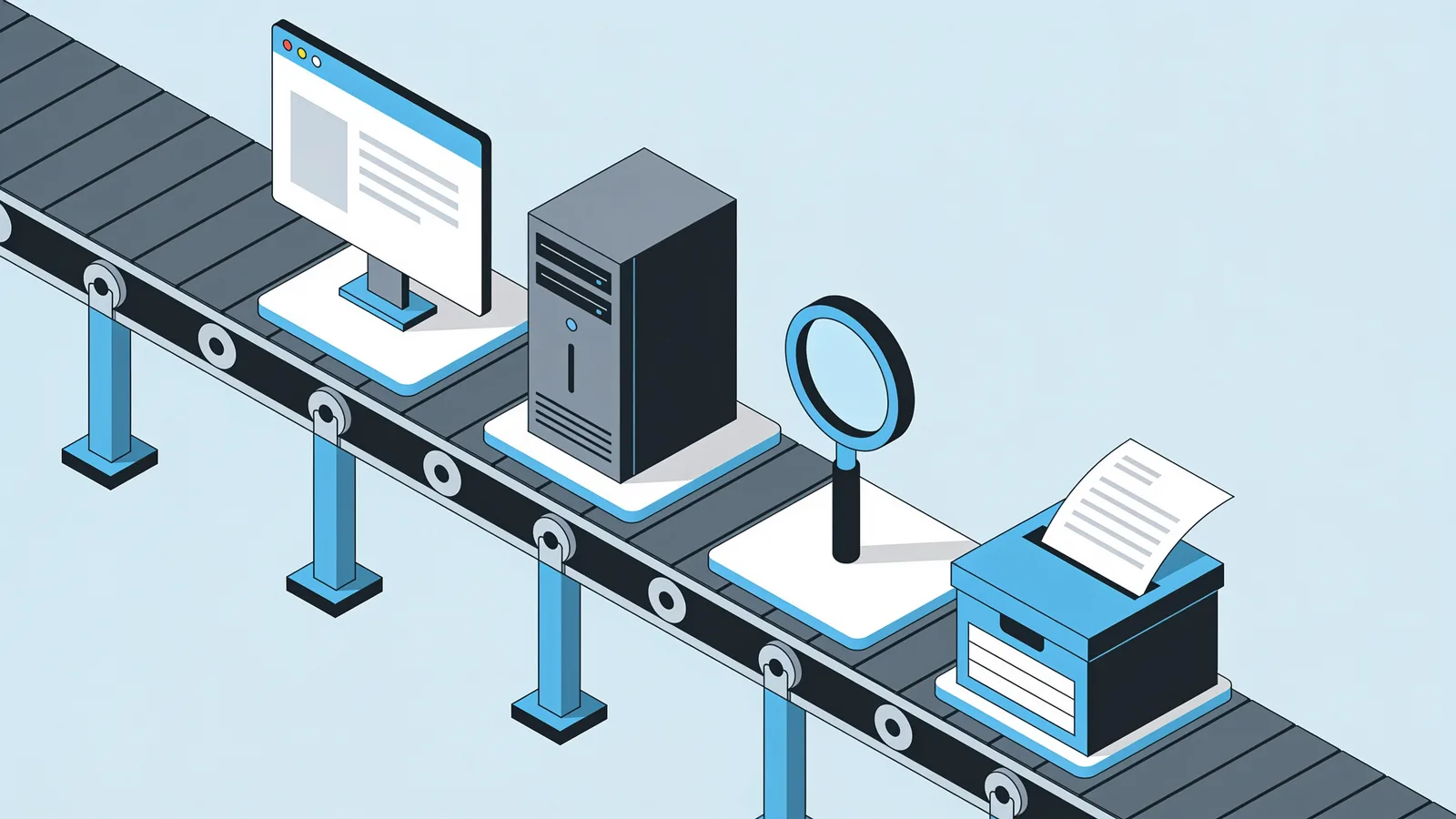
Watch a single page load and you can see the whole stack at work. Open a site on your phone and the browser cache serves whatever it already holds, the nearest CDN edge node serves most of the rest, and the origin server is only woken for what nobody had a copy of. Afterwards every layer keeps its copies, each on its own schedule, for its own reasons, almost none of them with you in mind.

Browser cache: the copy on your own machine
Your browser keeps images, scripts, stylesheets, and sometimes whole pages in a disk cache so repeat visits skip the network. It is the only web cache you physically own, and it is nearly useless for deliberate recovery: there is no browsing interface, Chrome removed its chrome://cache page years ago, entries live under hashed filenames, and the cache evicts things silently whenever it wants the space back.
Two scraps of practical value remain. If you visited a page shortly before it went down, a reload from your history will occasionally serve it from cache before the 404 can arrive, low odds, zero cost, worth one attempt. And your history always preserves the exact URL, which is the one input every other recovery tool needs.
CDN and proxy caches: the middlemen
Between you and most popular sites sits a content delivery network keeping copies at edge locations around the world, plus whatever caching layer the host bolted on. These caches obey the origin's headers, and a well-configured one keeps serving stale content for a while after the origin dies, the stale-if-error directive exists precisely for dead servers. That is why a site can look perfectly alive for days after its server was unplugged.
For recovery, though, treat CDN caches as weather: they can keep a site visible a little longer, but you cannot query them, browse them, or ask for last year's copy. Corporate proxy caches are the same story with an extra layer of deliberate opacity. Copies exist; none of them are for you. I once watched a client's Magento store stay 'online' for four days after the server died, the CDN kept serving the homepage and category pages while checkout silently failed. Looked alive, was a museum.
Search engines and archives: caches built to be seen
Search engine caches were the public's favorite recovery trick for two decades: Google kept a viewable copy of its last crawl, one click from every result. Google retired that in February 2024, the cache: operator and the Cached links both went away, and Bing has been winding its version down since. Search engines still cache the web internally, but the window the public could look through is closing.
What remains is the layer that was never a cache at all but a library: the archives. The Wayback Machine crawls on a schedule and takes on-demand saves through Save Page Now. archive.today saves pages on request and renders JavaScript first. Common Crawl publishes raw crawl data free for anyone willing to query its index. These copies were made to be retrieved by strangers decades later, no other layer of the web cache can say that.
How to use a web cache to see a lost page
- Confirm the exact URL from your browser history, the link that failed, or a citation. Every cache lookup starts with a URL.
- Query the Wayback Machine: web.archive.org/web/ followed by the URL. The calendar shows every snapshot; pick a healthy year, not the parking-page era.
- Check archive.today next. It saved different pages under different rules, and its JavaScript rendering captures pages Wayback shows as empty shells.
- Try the Common Crawl index at index.commoncrawl.org if both miss, raw HTML, no frills, occasionally the only copy anywhere.
- If the page died only days ago, look for a cached link in Bing results while that feature lasts, and try one reload from your own browser history.
- When one page turns into twenty from the same site, stop. Restore the site in bulk instead: Restorix gives a free estimate, exact archived file count, total size, and a locked price, before you commit to anything.
Expect roughly eight successes in ten for public pages that lived a year or more. The failures cluster predictably: robots-blocked sites, login-gated content, and pages deleted before any crawler passed by.
When every web cache lets you down
Some pages were never copied anywhere: too new, crawler-blocked, behind a login, or rendered so heavily in JavaScript that archives saved a shell without the content. When every cache comes up empty, the work turns from retrieval to reconstruction, quoted-phrase searches to surface syndication and quotes, Wikipedia citations that link to snapshots you missed, and the unfashionable but effective move of emailing the author for a copy. Old web page recovery walks through that forensic route in detail.
Cache your own stuff before you need it
The reliable way to win the web cache game is to stop depending on other people's caches. For any page you care about, submit it to Save Page Now and to archive.today so two independent archives hold it, and keep a local copy as a PDF or single-file HTML. For your own site, be even more boring: real backups on a schedule. Every cache on this list is an accident you got lucky with; a backup is a decision you made on purpose.
And if the page you are chasing is one of many on a site you own, skip the piecemeal route entirely: restore the site from the archive once with Restorix, deploy it with the bundled single-file CMS, and the recovery problem stops recurring. The tutorial shows the whole process end to end.
Restore your website from the Wayback Machine
Get a free estimate in seconds — you only pay when you confirm. Failed restores refund automatically.
FAQ
Is a web cache the same as a backup?
No. A cache is an opportunistic copy made for speed, and most caches evict content on their own schedule without asking anyone. A backup is a deliberate copy made for recovery. The only caches that behave like backups are the web archives, because preservation is their actual job.
How long does a cached page last?
Browser cache: days to weeks, gone without warning. CDN cache: seconds to days. Search engine cache: until the next recrawl, and Google's public view of it is gone anyway. Web archives: effectively permanent, captures from 1996 are still served today.
Can I force a web cache to update?
Browser: hard-reload with Ctrl+F5. CDN: purge it, if it is your site. Search engine: request a recrawl in Search Console. Archive: submit a fresh Save Page Now capture. You can only refresh caches you own or that accept public requests.
Why is my own browser cache so hard to browse?
Because it was built for speed, not humans. Entries are stored under hashed names with no viewer, Chrome removed its chrome://cache page years ago. Third-party cache viewers exist, but set expectations low: the cache evicts silently and most of what you want is already gone.
Does private or incognito mode use the web cache?
It uses a temporary cache that lives only for the session and is wiped when you close the window. Convenient for privacy, useless for recovery, nothing you viewed in private mode will be findable later.
Related guides

old web page recovery
Old Web Page Recovery: Fastest Ways to Find a Lost Page
Old web page recovery ranked by speed: Wayback Machine, archive.today, search engine caches, and forgotten sources to bring back a single lost page.

wayback machine
Wayback Machine: The Complete Guide to Browsing Web History
The Wayback Machine archives over 900 billion web pages. Learn how crawls, snapshots, the calendar, and search syntax work, and how to restore a lost site.

archive org website
Archive.org Website: Advanced Search, Filters & Collections
Master the Archive.org website with advanced search operators, filters, and the collections that matter for old websites, plus when to use a restore tool.

website history
Website History: Snapshots, WHOIS, DNS, and the Tools for Each
Website history can mean archived snapshots, WHOIS records, DNS changes, or old rankings. Learn which tool answers which question, and how to rebuild a lost site.