
Machine Way Back: Picking the Right Snapshot Date for a Restore
By the Restorix editorial team · June 12, 2026 · 7 min read

Restore your website from the Wayback Machine
Get a free estimate in seconds — you only pay when you confirm. Failed restores refund automatically.
Type 'machine way back' into a search engine and you'll land on the same tool everyone else does: the Wayback Machine at web.archive.org. But here's what nobody mentions on the way in. Finding the archive is the easy part. A restore lives or dies on one decision, which capture date you pick.
I've watched restores fail because someone grabbed the newest snapshot, which turned out to be a parked-domain page. And I've watched a 2014 store come back from the dead because we spent twenty minutes choosing 2018 over 2019. The dates matter more than the tools.
The Machine Way Back Problem: Which Snapshot Do You Trust?
A popular domain can hold tens of thousands of captures spread over two decades. The homepage alone might have five hundred. Each capture freezes one moment: that theme, those prices, that blog post, that hack. Pick the wrong moment and you restore the wrong website, perfectly.
The machine doesn't know which version was the good one. It just records what it saw, when it saw it. Judgment is your job, or the job of whoever you pay to run the restore.
Here's a number that focuses the mind. A mid-sized business site that ran for ten years can easily have 3,000 to 8,000 archived files across all its captures. Somewhere in that pile is the version worth paying to rebuild. The other versions, the hacked month, the half-finished redesign, the parking page, cost exactly the same to restore and are worth nothing.
How Wayback Machine Snapshots Actually Work
Restore your website from the Wayback Machine
Get a free estimate in seconds — you only pay when you confirm. Failed restores refund automatically.
A snapshot is not a site backup. It's one crawler visit to one URL at one timestamp. The crawler fetched the HTML, grabbed whatever assets it decided to grab, and moved on. The homepage of a known site might get captured weekly. A page three levels deep might get captured twice in its entire life.
One more wrinkle: when you view a snapshot, the archive assembles the page from the nearest captures it holds. The HTML might be from June 2016 while the logo comes from April and the stylesheet from August. Usually that's invisible. Sometimes it produces a frankenpage that looks broken even though every individual piece is real.
This is also why the toolbar timestamp is only half the story. It tells you when the HTML was captured, not when the images were. Keep that in your head every time you evaluate a date.

Reading the Wayback Machine Calendar Like a Pro
The calendar view is your map. Each year shows a sparkline bar, taller means more captures that year. Each captured day gets a circle: blue for a clean 2xx response, green for a redirect, orange or red for an error. A fat circle means several captures that day, which matters for sites that changed often.
| Circle | What it means | What to do |
|---|---|---|
| Blue | Clean 2xx capture | First choice for a restore |
| Green | Redirect (3xx) | Check where it points before trusting it |
| Orange / red | Client or server error | Skip unless there's no alternative |
| No circle | No capture that day | Try a neighboring date |
- Green circles deserve suspicion. A redirect capture might point at a new domain, a parked page, or a domain squat.
- Sparse years mean the crawler rarely visited. Take whatever date you can get and check it extra carefully.
- Dense weeks around a redesign mean heavy crawling, plenty of choice, so be picky.
If two dates look identical, open both in tabs and click through the same three pages on each. Differences hide in the deep pages: a menu item that 404s in one capture, a missing stylesheet in the other. Ten minutes of side-by-side comparison is the cheapest insurance in this whole process.
How Far Back Should a Wayback Machine Restore Go?
The right date is almost never the newest one. It's the last date the site was healthy: before the hack, before the redesign stalled halfway, before the domain lapsed and a parking page moved in.
- Find the last known-good period. Ask when the site last earned money, rankings, or traffic.
- Shortlist three to five candidate dates around that period.
- Open the homepage on each candidate and confirm it renders fully, images and all.
- Spot-check two or three deep pages, a product, a post, a category, on the same date.
- Prefer a date after the design settled, not mid-migration. Six weeks of mixed templates is a bad neighborhood.
With Restorix you set this as a date range at restore time, so the whole site comes from one window instead of a decade-long smear. If the first window looks thin, the free estimate tells you the exact archived file count before you pay, adjust the range and re-run it.
One check people skip: assets near your chosen date. A page captured on the 14th might rely on images captured on the 3rd. Widening the range by a few weeks lets the restore pull those neighbors in. You get a consistent site without the frankenpage problem.
Capture-Date Mistakes That Ruin a Restore
- Defaulting to the latest capture. Newest often means a parked domain, an expired-cert warning, or the spam page a hacker left behind.
- Trusting one page. The homepage can look perfect while every product page from that date is broken.
- Mixing eras. Homepage from 2019, posts from 2014, stylesheet from 2011, a site that contradicts itself on every click.
- Ignoring redirect captures. A 301 chain might lead to the site's new home, which changes what you should restore.
- Picking nostalgia over quality. The 2009 version is charming. The 2016 version is the one with all the content.
Every one of these is a twenty-minute problem before the restore and a two-day problem after it.
A 2014 Store, Three Candidate Dates
A client's WooCommerce store, launched in 2014, did well until a pharma-spam hack in early 2019. The domain lapsed in 2020 and the hosting died in 2021. The candidate dates: mid-2018 (healthy, current design), early 2019 (post-hack, the snapshot literally shows injected shoe ads above the fold), and late 2020 (a parking page). Not a hard choice, but only if you actually look at all three.
We set a date range of October to December 2018. The estimate showed the archived file count and a locked price. The restore ran with redirects preserved and old analytics stripped. The store is back on its original domain, earning again, the whole decision took less time than writing the invoice.
Notice what we didn't do: we didn't restore 2019 because it was 'closest to now', and we didn't restore 2014 out of sentiment. The date that wins is the one where the site was whole. Everything else is archaeology.
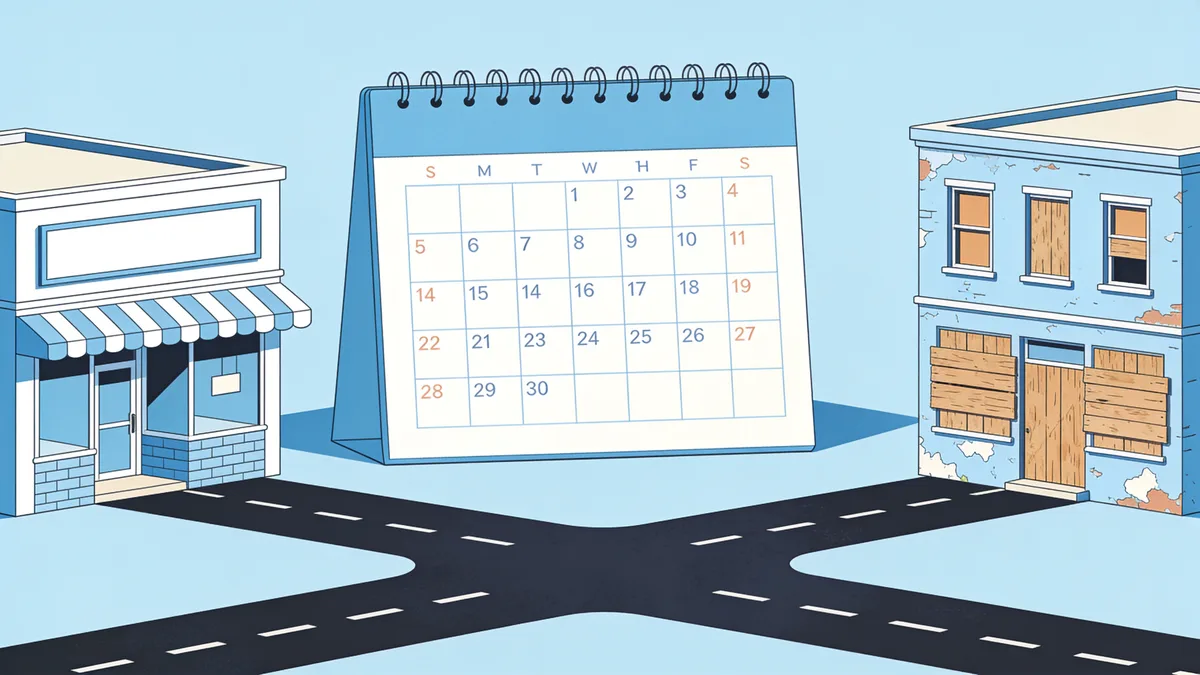
From Snapshot Date to Live Site
Once the date is chosen, the mechanical part is quick. Paste the domain into the restore dashboard, confirm the free estimate, set your date range, and choose cleanup options, relative internal links, HTTPS conversion, minified assets, removed iframes and external links. Then download the site, or deploy it in one click to SSH/SFTP, FTP/FTPS, or S3.
The time machine did its part when it saved the page. Yours is picking the day worth going back to.
After deploy, the bundled Restorix CMS sits at /webarchive-cms.php with a per-site password in the dashboard, safe mode on by default. It handles content edits and search-and-replace, which is exactly what you want when a restored page shows last decade's phone number. The tutorial covers the whole flow from estimate to edit.
Restore your website from the Wayback Machine
Get a free estimate in seconds — you only pay when you confirm. Failed restores refund automatically.
FAQ
What does 'machine way back' mean?
It's one of the common scrambles of 'Wayback Machine', the Internet Archive's web archive at web.archive.org. Same tool, same calendar of snapshots, the words just arrived in a different order. If you meant the time machine for websites, you're in the right place.
Why does a snapshot show images from a different date than the page?
The archive stores every file as a separate capture and assembles pages from the nearest ones it holds. If the crawler missed your hero image on June 12, the viewer borrows the June 3 capture. It's a feature, not a bug, but it's why some snapshots look slightly wrong.
What if the exact date I need has no capture?
Take the closest clean one, then check whether its missing assets exist on neighboring dates. A restore tool with a date range can fill those gaps automatically. If a whole period is dark, run the free estimate first, you'll see the real file count before paying anything.
Is a snapshot from the middle of a redesign safe to restore?
Risky. Mid-migration captures often mix two templates, half-updated menus and dead links. Pick a date a few weeks after the redesign settled, when the crawler recorded a consistent site from top to bottom.
How many dates should I check before restoring?
Three to five candidates is usually enough. Check the homepage plus two or three deep pages on each. Fifteen minutes of clicking beats discovering the pharma ads after the site is live.
Does the newest snapshot ever win?
Sometimes, a site that ran clean until its final month is best restored from a late capture. But 'newest' is a starting hypothesis, not a strategy. Verify the newest date actually shows your content and not a parking page before you build on it.
Related guides
wayback back machine
Wayback Back Machine: However You Type It, Here's How to Use It
Typed 'wayback back machine' into a search box? You're in the right place. How to find snapshots, download a page, and restore a whole site.

time wayback machine
Time Wayback Machine: Snapshots, Timestamps, and Capture Gaps
A practical guide to the time Wayback Machine: read the snapshot timeline, decode the 14-digit timestamp, understand capture gaps, and recover what you find.

website history
Website History: Snapshots, WHOIS, DNS, and the Tools for Each
Website history can mean archived snapshots, WHOIS records, DNS changes, or old rankings. Learn which tool answers which question, and how to rebuild a lost site.

wayback restore
Wayback Restore: Get Your Lost Site Back in 5 Steps
Wayback restore in five plain steps: find the right snapshot, get an exact price before paying, download the rebuilt files, and upload them to your hosting.