
Download an Entire Website from Archive.org, Not Just the Homepage
By the Restorix editorial team · July 15, 2026 · 7 min read

Restore your website from the Wayback Machine
Get a free estimate in seconds — you only pay when you confirm. Failed restores refund automatically.
Anyone can save a homepage. The homepage is the easy part, it is the 4,000 files behind it that separate 'I grabbed a copy' from 'I actually have the site'. When someone asks me to download an entire website from archive.org, the homepage is usually already sitting on their desktop, and the stylesheet is not.
This piece is about the word 'entire'. What a complete copy actually includes, why the archive scatters your assets across years of different timestamps, and a checklist you can run at the end to prove you got everything instead of hoping you did.
What 'entire' means when you download an entire website from archive.org
A complete copy has four layers, and most people stop after the first. The HTML for every page that existed. The assets every page references: images, stylesheets, JavaScript, fonts, PDFs, videos. Internal links rewritten so the copy browses on its own, without leaning on archive.org's servers. And a manifest of what was captured, so the gaps are documented rather than discovered later by a client.
- Pages: every URL the crawler ever saw, not just the ones in the main menu. Old sites hide whole sections behind forgotten footer links.
- Assets: images, CSS, JS, fonts and downloadable files, on most sites these outnumber the pages five to one.
- Links: rewritten to relative paths, or your copy only works for as long as archive.org does.
- A manifest: a file-by-file list of what you have, turning 'I think I got it all' into something checkable.
The file counts surprise people. A modest 50-page business site routinely totals 400-800 files. A 2009 phpBB forum with user avatars and attachments can run into the tens of thousands. Plan for the file count, not the page count.
There is also a difference between a copy that browses and a copy that redeploys. A browsing copy just needs the files and working links. A copy you intend to put back on hosting wants more: consistent canonical URLs (pick www or non-www), HTTPS-ready references, and dead weight like decade-old analytics scripts stripped out. Decide which of the two you are building before you start, because retrofitting either is tedious.
Why assets live under different timestamps
Restore your website from the Wayback Machine
Get a free estimate in seconds — you only pay when you confirm. Failed restores refund automatically.
The Wayback Machine does not photograph a whole site in one afternoon. Its crawlers fetch whatever they can reach, whenever they happen to reach it. Your 2014 homepage might reference a logo last captured in 2012, a stylesheet captured six times across five years, and a hero image captured never. When you view that page, archive.org quietly substitutes the closest capture it holds for each asset. That is why the page looks fine in your browser even though its parts are scattered across a decade.
Two consequences follow. First, there is no single 'timestamp of the site' you can point a downloader at, a complete download pulls each file from its own best capture. Second, the closest-capture trick hides gaps: wayback will happily serve a 2016 image into your 2014 page without mentioning it. Harmless for casual browsing, worth knowing about when you care whether the restored page is really the 2014 one.
An archived page is a collage. The HTML, the images and the CSS were each frozen at different moments, and the archive glues them together again every time someone looks.
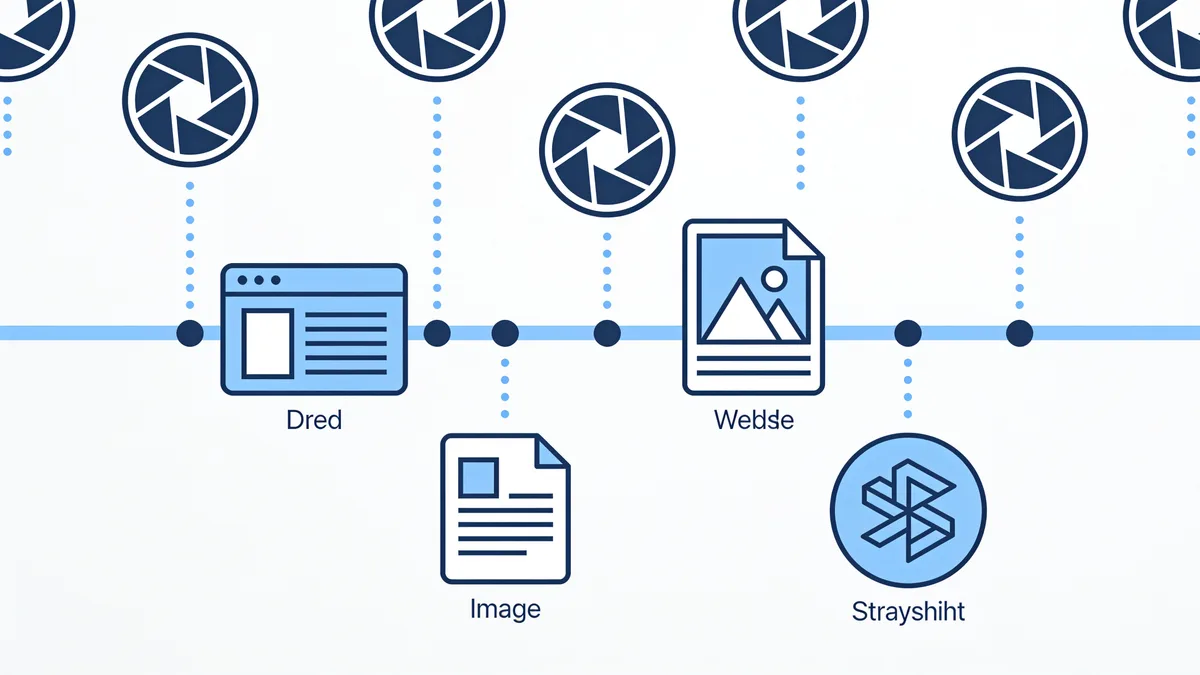
Any tool or script you use needs a strategy for this. The lazy strategy, fetch everything at one timestamp, is exactly how you end up with a page full of broken image icons, because half the assets simply have no capture that week. The right strategy is per-file: take each asset from its own closest good capture within your date range.
How to download an entire website from archive.org: start with the inventory
Before fetching a single file, list what the archive actually holds. The CDX API gives you the full ledger for a domain: every captured URL with its timestamps, MIME type and HTTP status. Filter to statuscode 200, collapse duplicate content digests, and you have a realistic shopping list instead of a guess.
Read the inventory before downloading and you learn the uncomfortable things early. On that phpBB forum job, the CDX listing showed 11,000 captured URLs, and about 3,000 of them were the same avatar GIF saved under different query strings. Collapsing duplicates turned a frightening job into an ordinary one. The same listing also exposes the pages that were never captured at all, which no download method on earth can conjure back. Better to know that on day one.
Group the survivors by MIME type and the shape of the job appears: how many HTML pages, how many images, how much JavaScript, whether there are PDFs or video to worry about. That grouping drives both your download order and your final completeness check.
Checklist to download an entire website from archive.org without gaps
- Pull the CDX inventory for the domain, filtered to HTTP 200 captures, covering your full date range.
- Collapse duplicate content digests so identical files download once instead of hundreds of times.
- Group the list by MIME type: HTML pages first, then CSS, JS, images, fonts, documents, media.
- Download each file from its own best capture, using the id_ modifier to get original bytes without wayback's injected markup.
- Rewrite internal links to relative paths so the copy works on any host, including your laptop.
- Serve the folder locally and click through it. Broken links, missing images and font 404s show up within minutes.
- Compare the final file count against the inventory and write down what is missing and why.

That last step is the one everyone skips, and it is the difference between a backup and a pile of files. A manifest turns 'I think I got it all' into a list you can audit. Restorix bakes this in: the free estimate reports the exact archived file count and total size before you start, and the restore can export a JSON or SQLite manifest of every file it brought back, so completeness is a number, not a feeling.
The gaps you will hit anyway
- Pages the crawler never found. If nothing on the public web linked to a page, wayback probably never saw it.
- Robots.txt exclusions. Older crawls skipped disallowed paths entirely, and some sites blocked archiving on purpose.
- JavaScript-rendered content. Crawlers historically stored the HTML shell, not whatever the scripts built afterward.
- Logins, carts and search results. Anything behind a POST request or a session is a wall the crawler could not pass.
- URL noise. Session IDs and tracking parameters inflate the inventory with thousands of duplicate 'pages' that dedupe down to a few real ones.
None of these are failures of your method, they are holes in the archive itself. The value of the inventory is that it shows you the holes before you promise anyone a complete restore.
When you do find holes, document them. A one-page note listing the twelve pages that were never captured, the video that only exists as a thumbnail, and the forum section blocked by robots.txt turns an awkward surprise into a managed expectation. Clients forgive missing files. They do not forgive discovering them on their own.
What a complete copy is worth
If the site is a client's store or a community forum with a decade of posts, a half-download is a liability dressed up as a backup. Either budget the hours to run the checklist yourself, or hand the crawling, timestamp matching, link rewriting and manifesting to a tool built for exactly this job. The estimate costs nothing, and the alternative is finding the missing 300 images after the site goes live.
Restore your website from the Wayback Machine
Get a free estimate in seconds — you only pay when you confirm. Failed restores refund automatically.
FAQ
Can I download an entire website from archive.org in one click?
Archive.org itself offers no whole-site export, it is built for browsing single captures. One-click results come from tools that enumerate the archive's index and fetch every file: scripts like wayback-machine-downloader, or restore services such as Restorix that also handle assets, link rewriting and the manifest.
Why are images missing after I download an entire website from archive.org?
Usually one of two reasons. Either the image was never crawled, so no copy exists anywhere, or your tool fetched the page from one timestamp while the only surviving image capture sits under another. Cross-timestamp asset matching fixes the second case; nothing fixes the first.
Does the Wayback Machine archive every page of a website?
No. It archives what its crawlers could reach: pages linked from somewhere, permitted by robots.txt, rendered without logins or heavy JavaScript. Deep forum threads, faceted search pages and admin areas are routinely absent. The CDX inventory shows exactly what exists before you start.
How many files does a complete website download usually involve?
More than people expect. A modest 50-page business site often totals 400-800 files once you count images, stylesheets, scripts and fonts. Forums and stores run into the tens of thousands. The file count, not the page count, is what drives download time and cost.
Are PDFs, videos and other downloads included in the archive?
Often, yes. The archive stores documents and media it could reach, and the CDX index lists them by MIME type alongside pages. Large videos are the exception, they were crawled inconsistently, so verify them in the inventory rather than assuming they survived.
Related guides
download a website from archive org
How to Download a Website from Archive.org: 3 Ways That Work
Three proven ways to download a website from archive.org: save pages by hand, script the CDX API, or run an automated restore. Realistic time estimates for each.

archive.org download website
Archive.org Download Website Tools: An Honest Comparison
An honest archive.org download website comparison: HTTrack, wayback-machine-downloader scripts, and Restorix. Real costs, effort, and asset handling.

find all pages on a website
How to Find All Pages on a Website (Even Deleted Ones)
Need to find all pages on a website, including the ones nobody links to? Compare sitemaps, crawlers, the Wayback CDX API, and Search Console exports.

wayback download
Wayback Download: Every Method Ranked by Effort
Every wayback download method ranked by effort: single pages, wget scripts, the CDX API, and automated services that rebuild the whole site for you.